Forget the classic Copy-Paste: Two hidden shortcuts in Windows that save hours of work
We all know about the almighty keyboard shortcuts Ctrl + C and Ctrl + V. It is usual that with Ctrl + C we copy the text a sa Ctrl + V let's paste that text somewhere.
However, classic Clipboard (container) in Windows has one big drawback — it only remembers one thing. As soon as you copy a new text or image, the previous one is lost forever.
Windows 10 and Windows 11 hide two fantastic tools that solve this problem and drastically speed up the daily writing of e-mails, documents and messages.
1. Windows Clipboard History: Copy multiple things at once (Win + V)
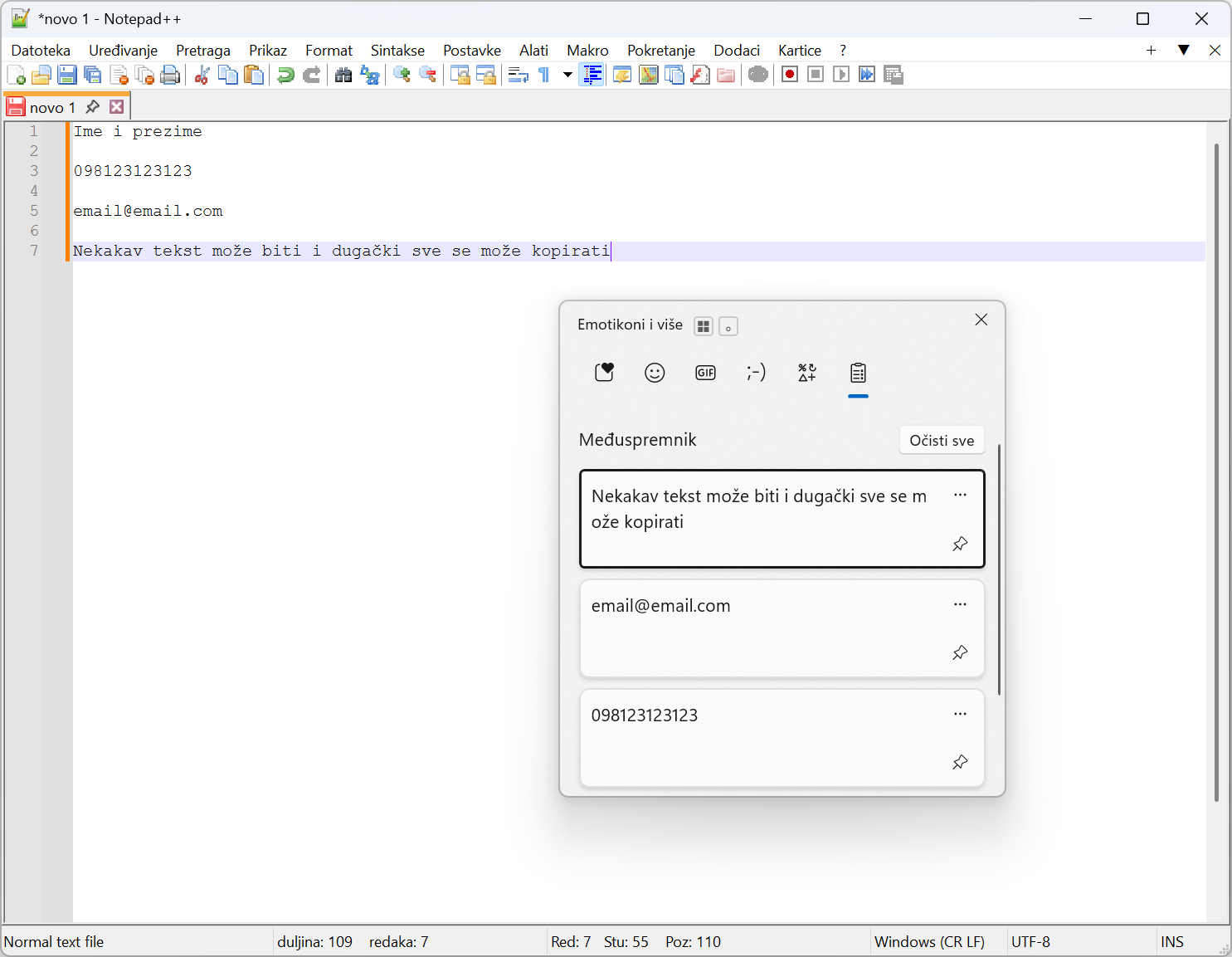
Imagine that you are filling out a form or writing an e-mail in which you have to copy the name, address, OIB and phone number from another document. Instead of switching from window to window four times (copy name -> paste name -> copy address -> paste address...), with Container history you can do everything in one go.
You copy all the data in order using Ctrl + C, and then press at the place where you write Win + V (Windows key + letter V).
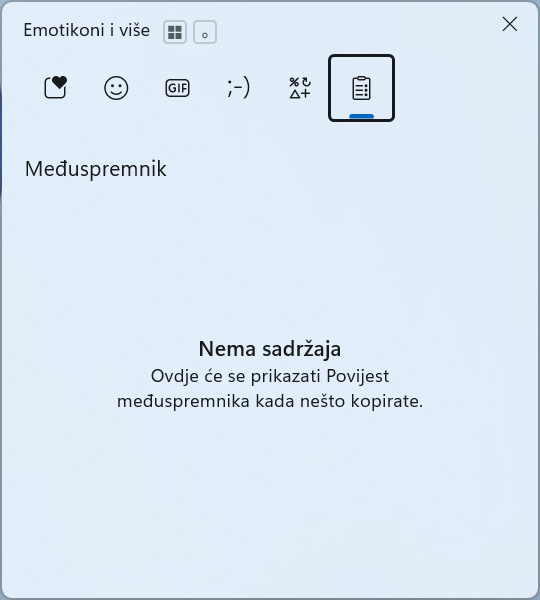
This will open a small window with all the items you copied earlier (text, links and even images/screenshots). By clicking on any item from the history, it is instantly inserted into your document.
How to enable this function? The function needs to be turned on only once:
-
Press the key combination Win + V.
-
If the function is not active, a window with a button will appear Turn it on (Turn on).
-
Click the button and the container is ready to go.
(Alternatively: Settings -> System -> Clipboard -> turn on 'Clipboard history' / Settings -> System -> Clipboard).
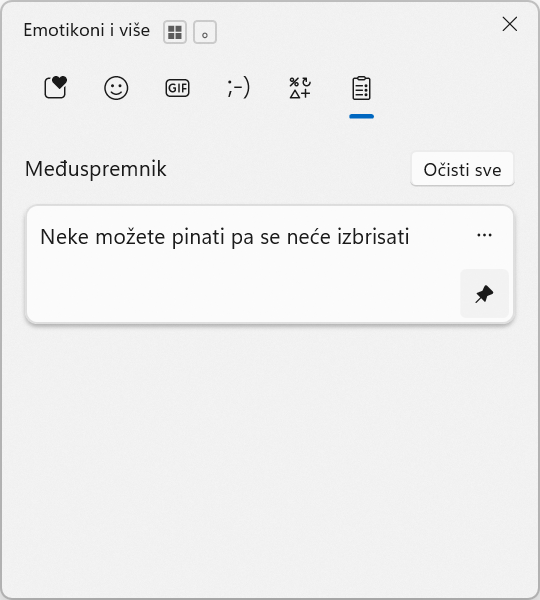
Additional trick: If you use some data every day (eg your IBAN, OIB or e-mail signature), in the small window Win + V click the pin icon (Pin) next to that item. This way, this data will be remembered in the container even when you restart your computer.
2. Panel with symbols and emoticons (Win + .)
Searching for smileys in applications that don't have them built in (like Word, Excel or Web Forms) or manually copying special characters like permil (‰), degrees (°C) or euros (€) can be tedious.
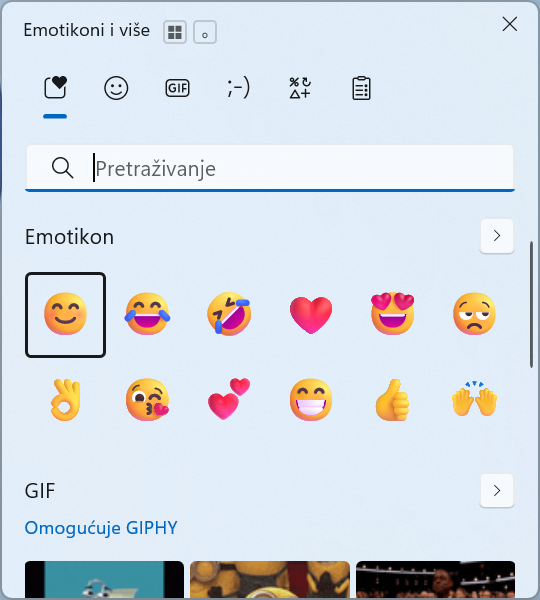
The next time you write any text, press the combination Win+. (Windows key + period) or Win + ; (Windows key + semicolon).
The official Windows panel will open with:
-
Emoticons (Emoji): All standard smileys sorted by category.
-
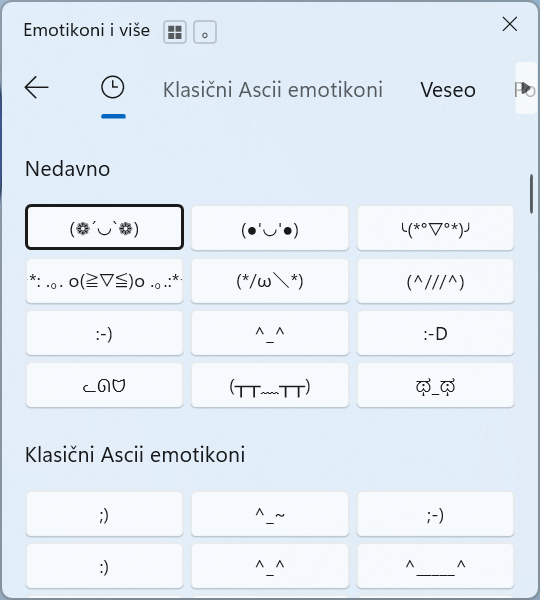
KAO-Moji (Kaomoji): Classic Japanese text emoticons like
( ͡° ͜ʖ ͡°)or¯\_(ツ)_/¯. -
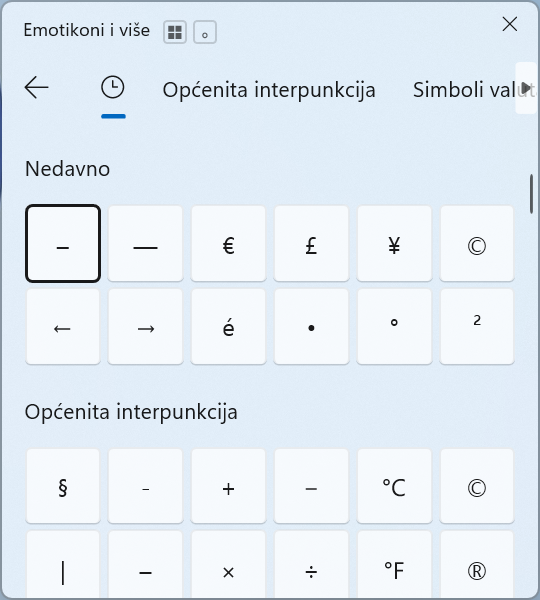
Special symbols: An extremely useful section containing mathematical characters, currencies (€, $, £), arrows, copyrights (©, ®) and other characters that are otherwise difficult to type on a standard keyboard.
-
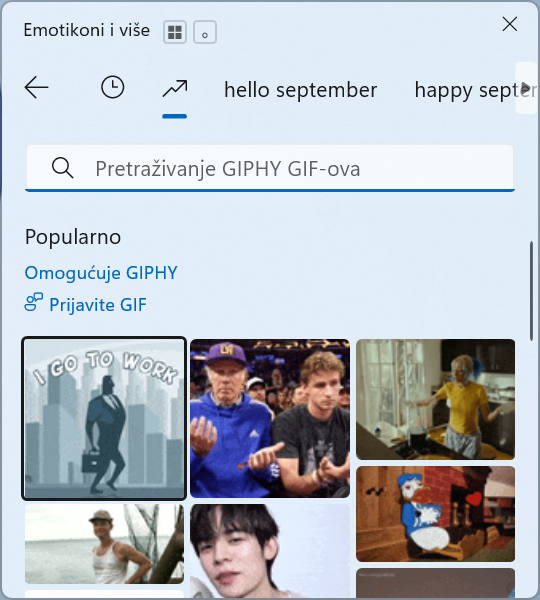
GIF animations: Quickly search and insert animated images directly into applications that support them
Summary: Shortcuts you must remember
-
Win + V – Opens container history (multiple copy-paste).
-
Win+. – Opens a panel with smileys, GIFs and special symbols.
When you get used to using these two shortcuts, working on the computer becomes incomparably faster and more pleasant.