How to extract and copy text from any image without installing additional programs
It must have happened to you quite a few times that you need to copy text from a photo, a scanned PDF, a paused video or an error window that does not allow you to select with the mouse. Manually rewriting long IBAN numbers, codes or addresses is time-consuming and easily leads to errors.
The good news is that you no longer need to install any additional suspicious programs from the Internet for this problem. Windows 11 in its built-in Snipping Tool it has an integrated AI text recognition (OCR) function that does the job in seconds, whether you're taking a screenshot or using an already saved photo.
Option 1: Extract text from saved file (images)
If someone sent you a photo of a contract, business card or payment slip and you have already saved it on your computer (eg .jpg or .png), you don't need to record the screen. The snipping tool can read your file directly.
-
Find the saved image on your computer.
-
Click on it right click, go to Open with and select Snipping Tool.
-
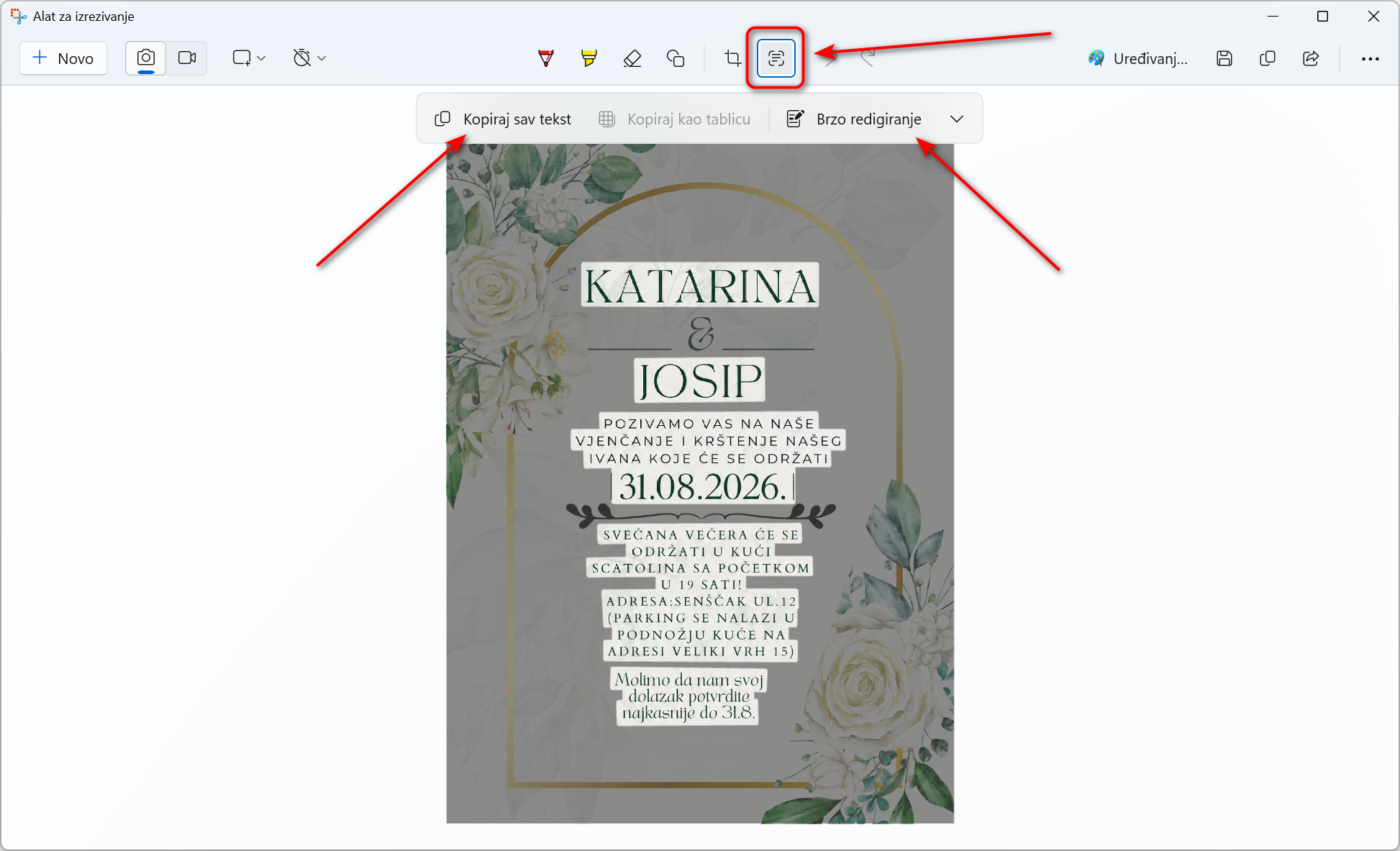
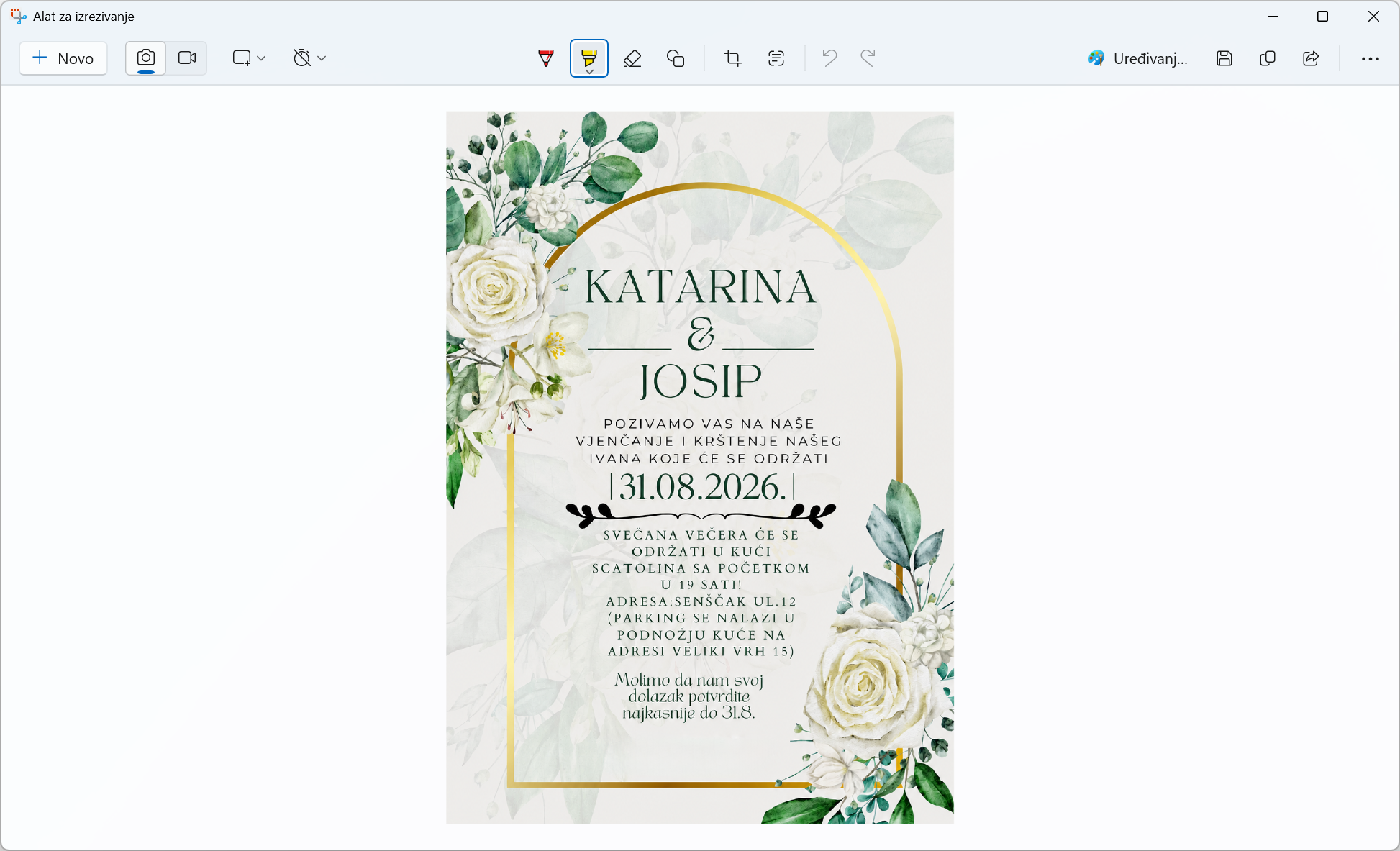
When the image opens in the tool, click on the icon in the top bar Text actions — looks like a small square with lines of text.
-
The tool will recognize all the text in a second. Click on the button Copy all text or mark only the part you need with the mouse and press Ctrl + C.
-
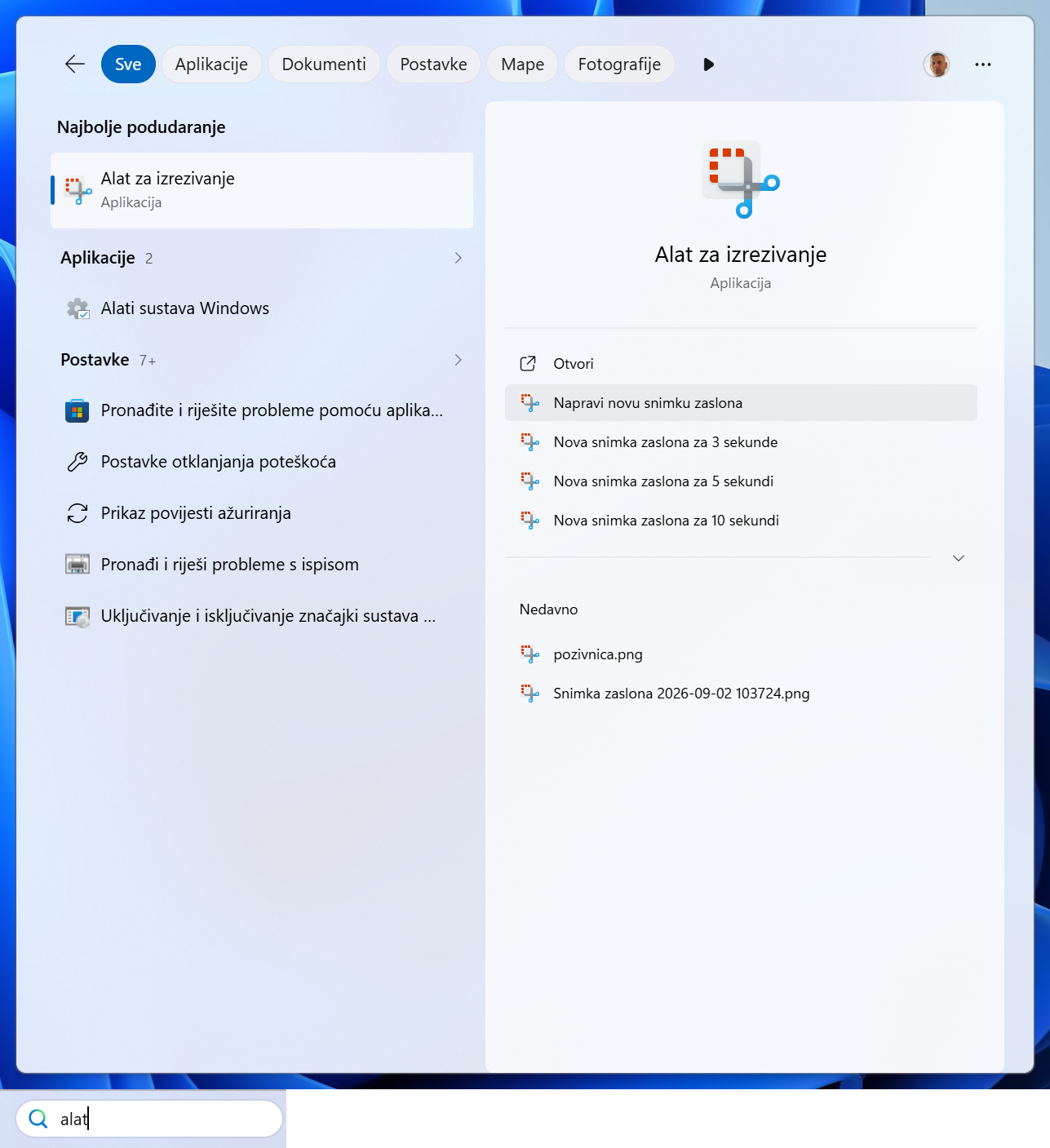
Run it Snipping Tool.
-
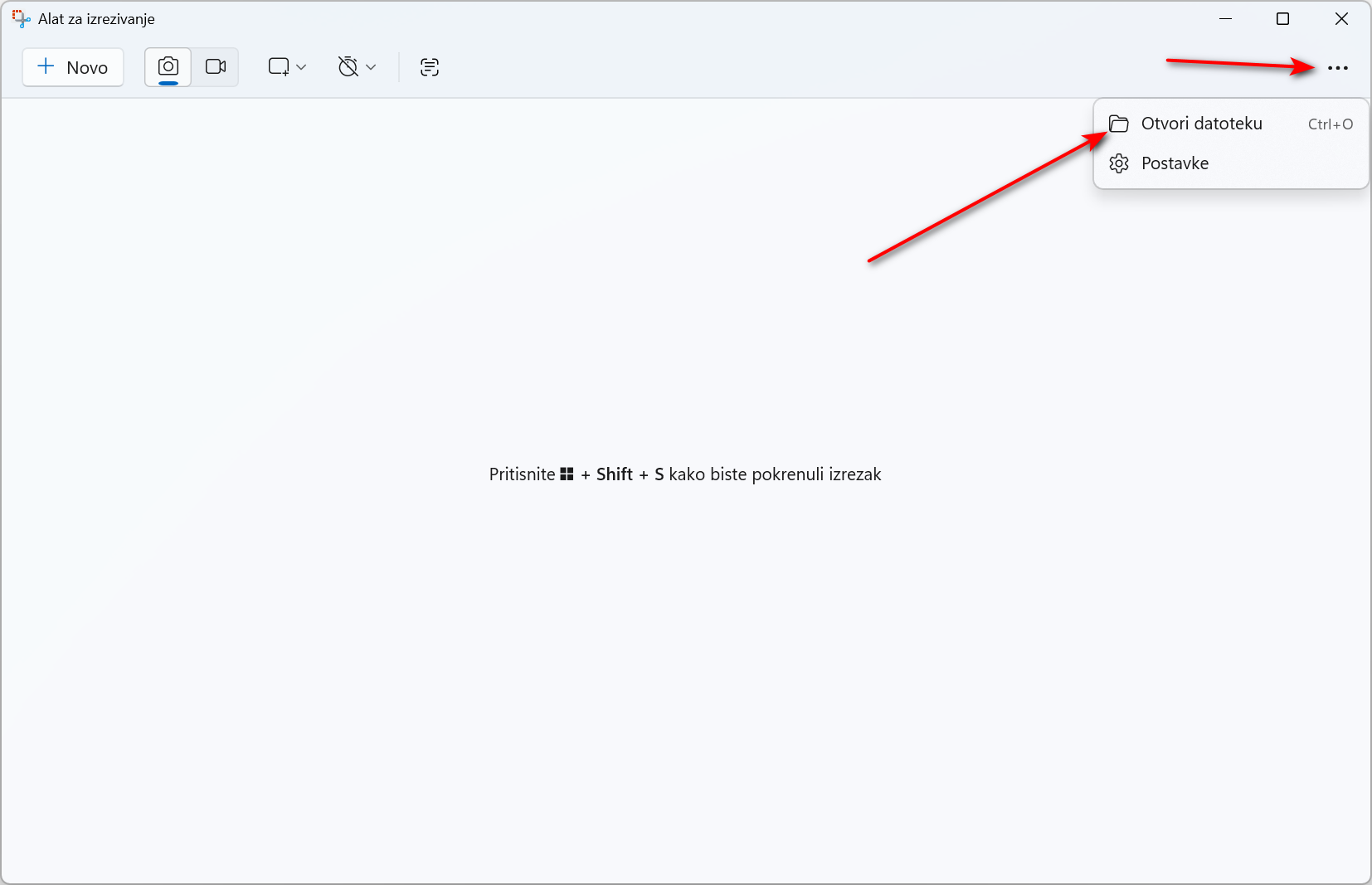
Click on the three dots in the upper right corner.
-
Find the image you want to upload on your computer
-
Click on the text recognition icon.
Option 2: Extracting text from the current screen (Screenshot)
If the text is not in a file, but somewhere on the screen (a paused YouTube video, a system error notification, or a protected document from the web), use this quick procedure:
-
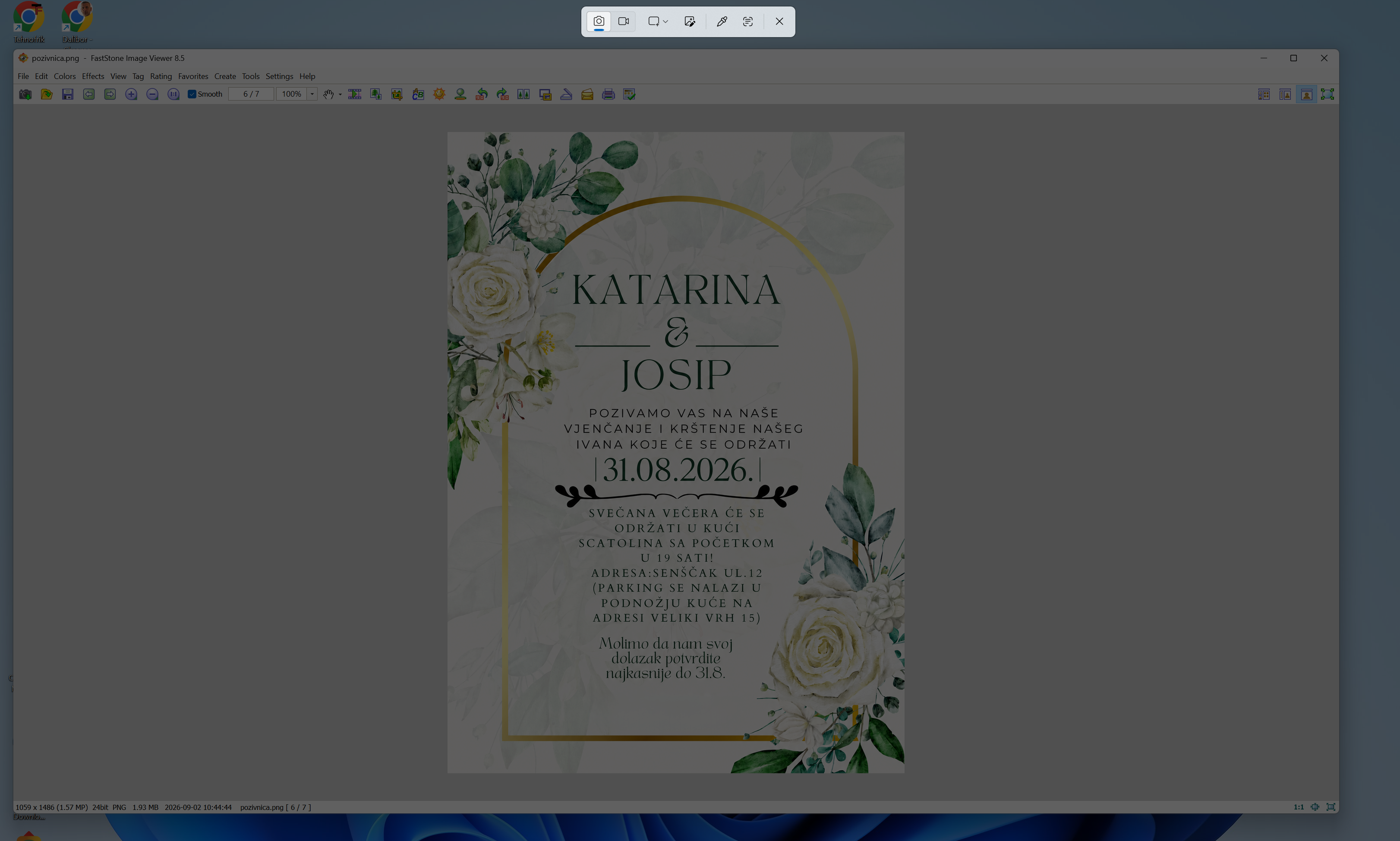
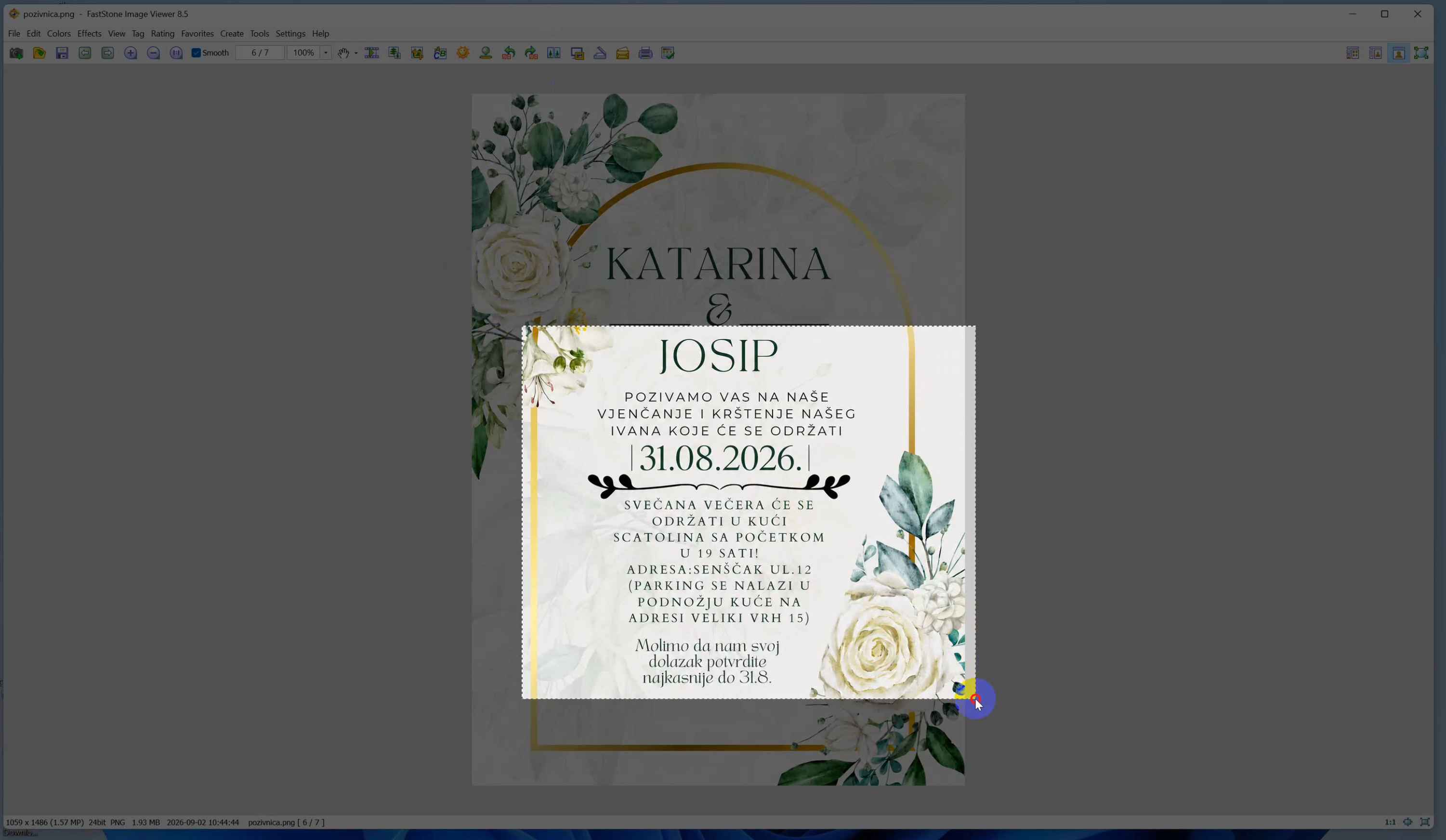
Capture part of the screen: Press the keyboard shortcut Win + Shift + S. The screen will go dark, and you use the mouse to mark a rectangle around the text you want to copy.
-
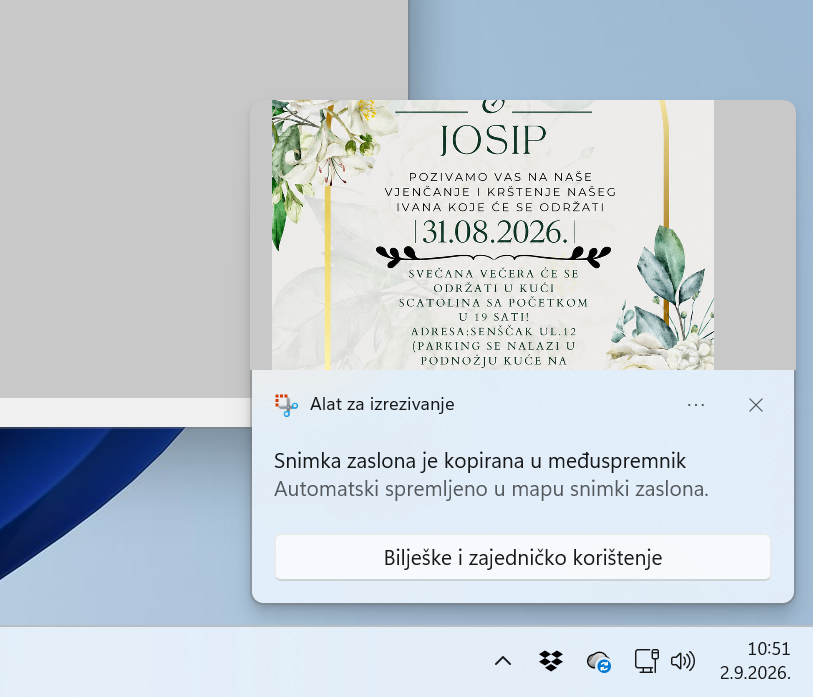
Open the recording: A notification will pop up in the lower right corner of the screen that the recording has been made. Click on it.
NOTE: If the display in the lower right corner disappears, the recording was automatically recorded in the folder: PICTURES / SCREEN CAPTURES, so you can upload it again. -
Copy the text: In the open window, click on the icon Text actions, highlight the desired text and copy it.
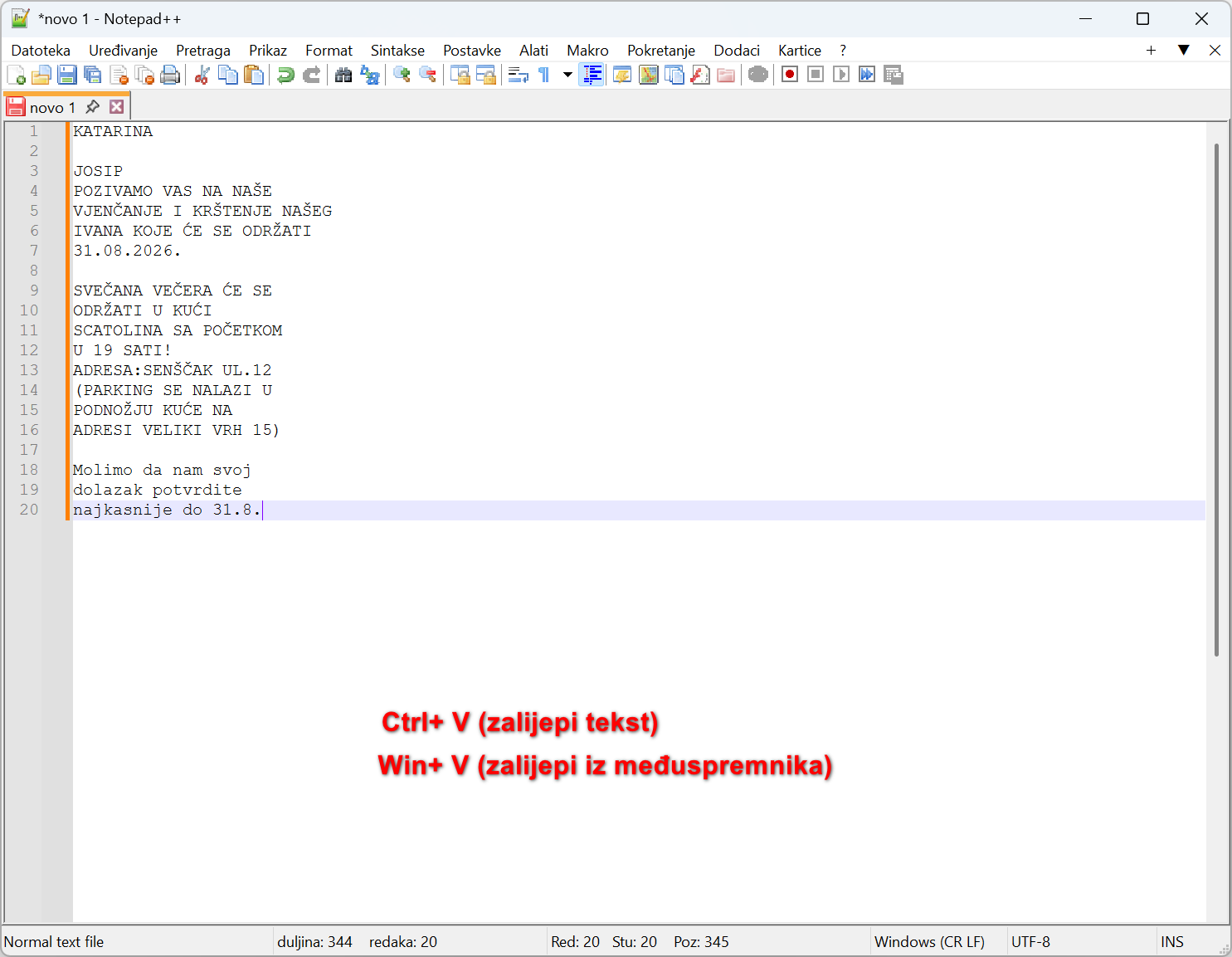
Once the text has been copied (either from a file or from a screenshot), open Word, email or Notepad and simply paste it using Ctrl + V
Hidden asset: Automatic hiding of sensitive data
Apart from just text recognition, this tool also has one extremely useful security feature — Editing (Quick Redact).
If you're opening a document that you plan to pass on, and it contains sensitive information, you don't need to color it manually with a black brush.
Within the option Actions with text click on Quick Redact. The tool will automatically recognize all phone numbers and e-mail addresses and with one click automatically blur/blacken them on the image before saving and sending it on.
When is this most useful?
-
Saved account photos: Quick extraction of IBAN and payment model from images sent via WhatsApp or e-mail.
-
Scanned documents: Converting a 'dead' photo of a paper document into editable text.
-
System errors: Copying the exact text of the unmarkable error from the screen to make it easier to search on the Internet.
This is the fastest and safest way to work with text on images on Windows 11, without any need for third-party applications.