How to automatically launch programs, scripts and documents as soon as you turn on your computer
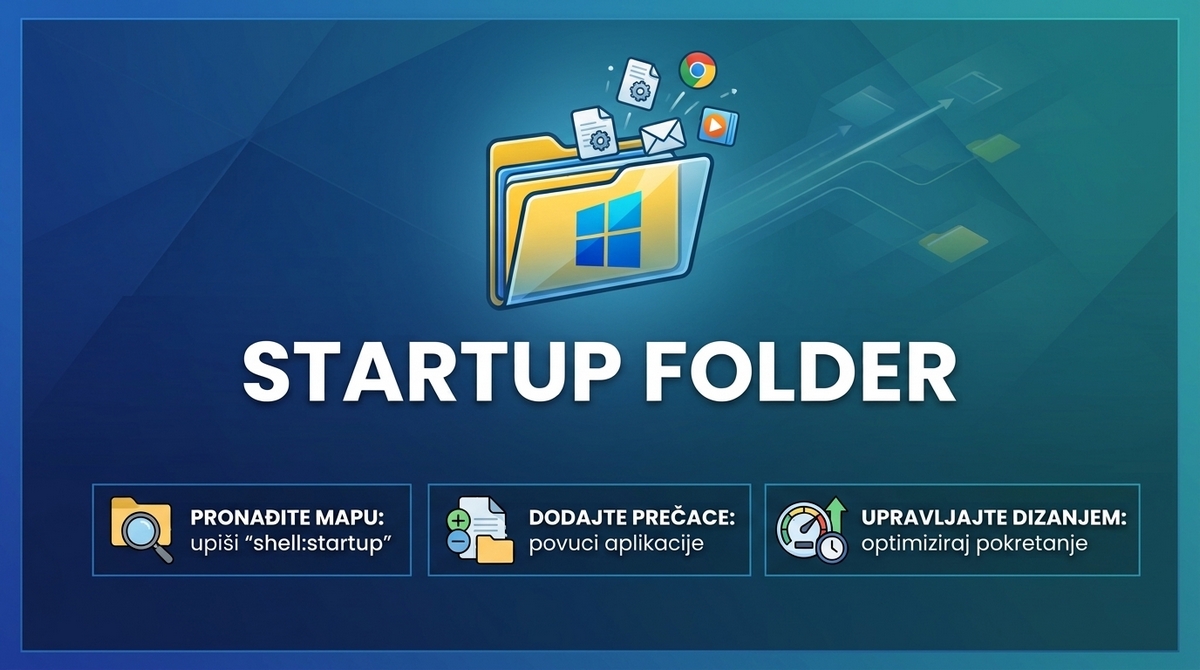
We all have that one program, Excel spreadsheet or automated script that we manually open as soon as Windows boots up. Instead of wasting time repeating the same clicks every day, Windows has a built-in but somewhat hidden one Startup folder (Starting System Folder) that does the job for you.
Anything you put in this folder, Windows will automatically start right after you type your password.
Here is the fastest way to get it and how to use it correctly.
How to find the Startup folder in 2 seconds?
Forget about manually digging through system drives, turning on hidden files display and searching AppData map. There is an incomparably faster way.
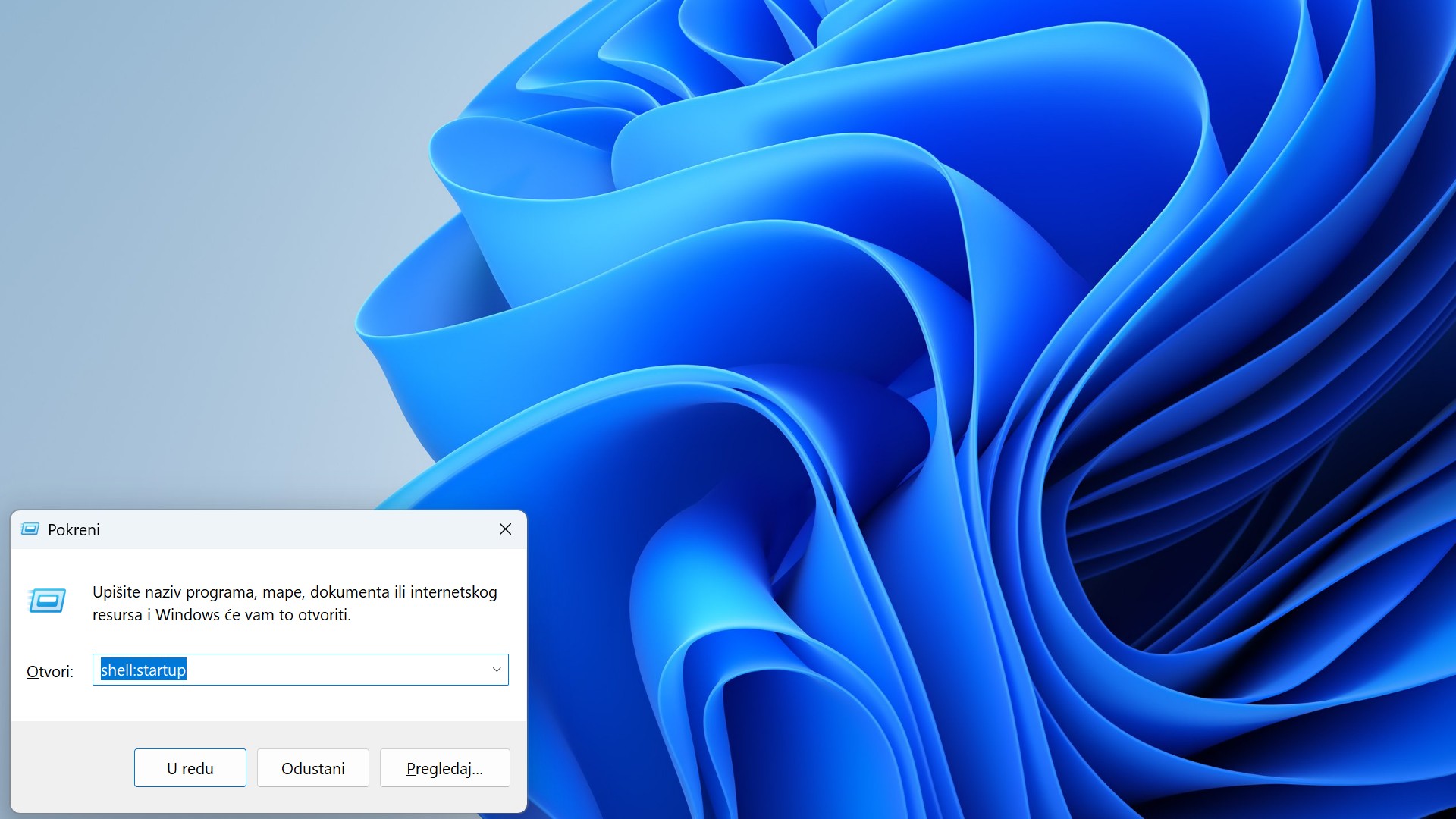
Step 1: Press the keyboard shortcut Win + R to open a window Run it (Run).
Step 2: Type one of the following two commands, depending on what exactly you want:
-
shell: startup — Opens the folder that starts the programs only for your user account. (This is what you need in 99% of cases).
-
shell:common startup — Opens the global map. What you put in here will run for absolute all users who have an account on that computer.
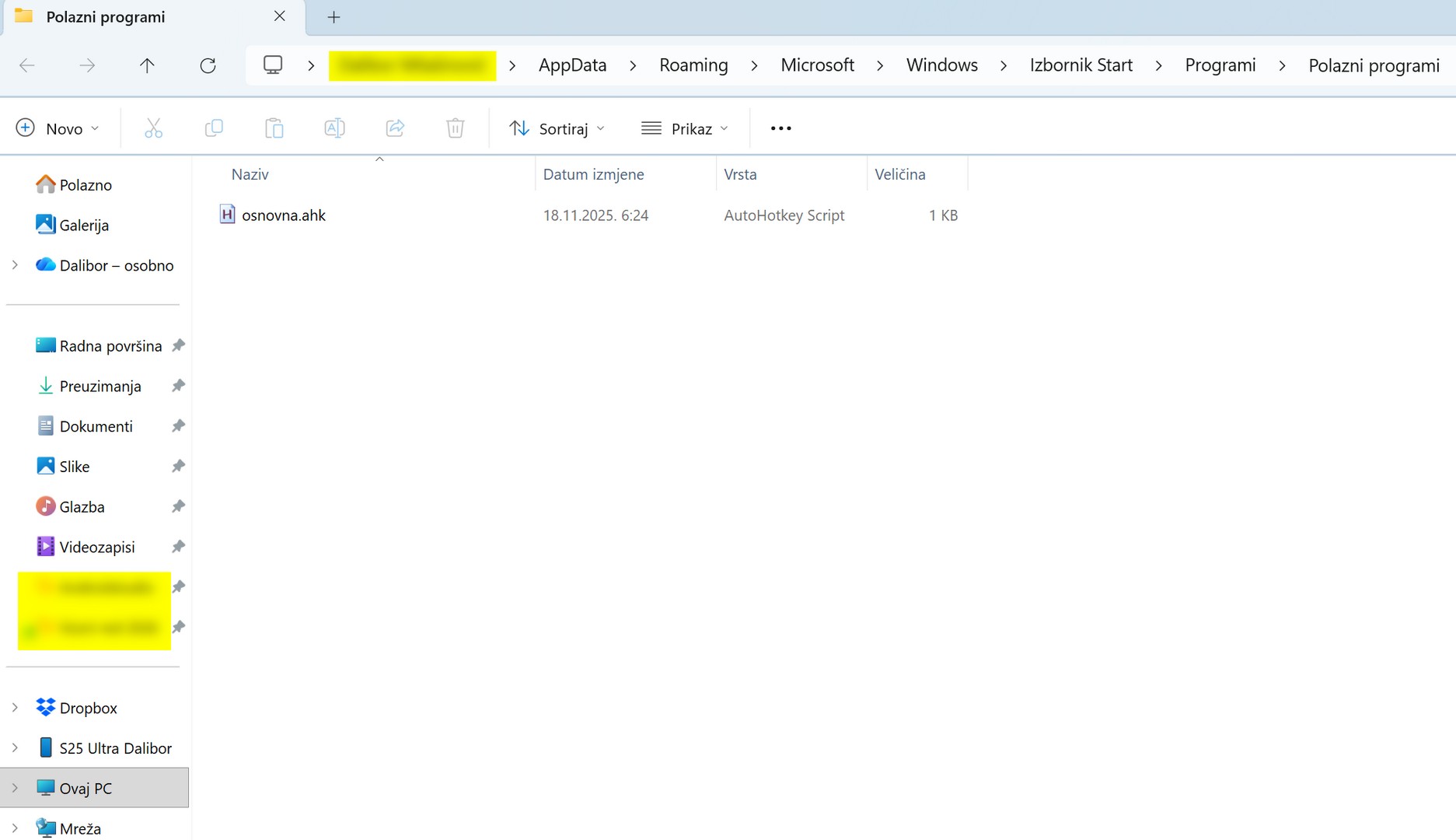
After typing the command, press Enter. An empty (or semi-empty) folder will open. This is your Startup folder.
How to add a program, document or script to Startup?
Many make a critical mistake here: in the Startup folder never you must not move or usually copy (Copy-Paste) the original file. If you copy the original program out of its folder, it probably won't want to run. If you copy a document, you will create a duplicate, so your changes will not be saved to the original.
They are placed exclusively in the Startup folder Shortcuts. You can do this in two quick ways:
Method 1: Quick copy (Paste shortcut)
-
Find the program, script, or document that you want to open on its own.
-
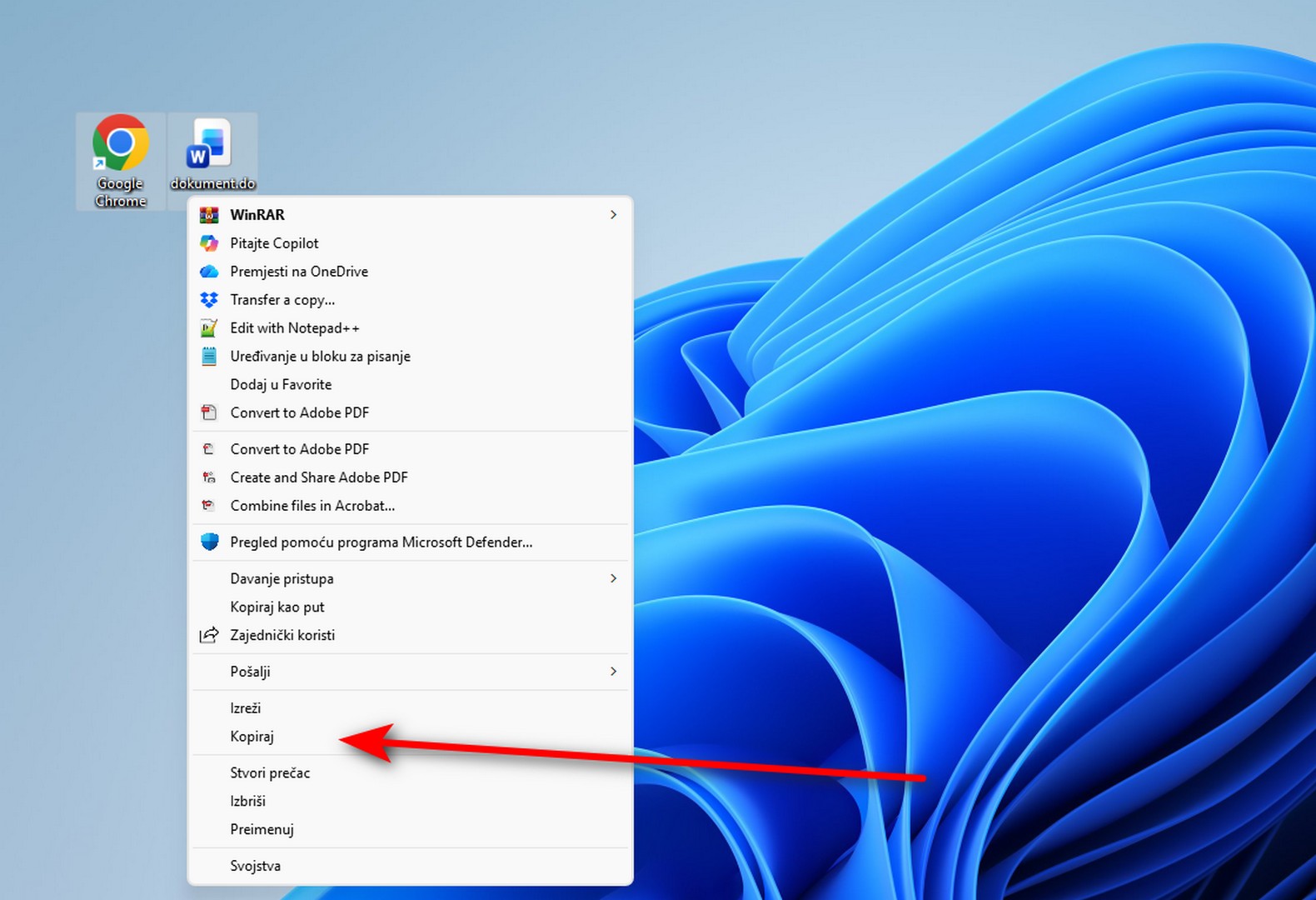
Right click on it and select Copy or simply squeeze Ctrl + C.
-
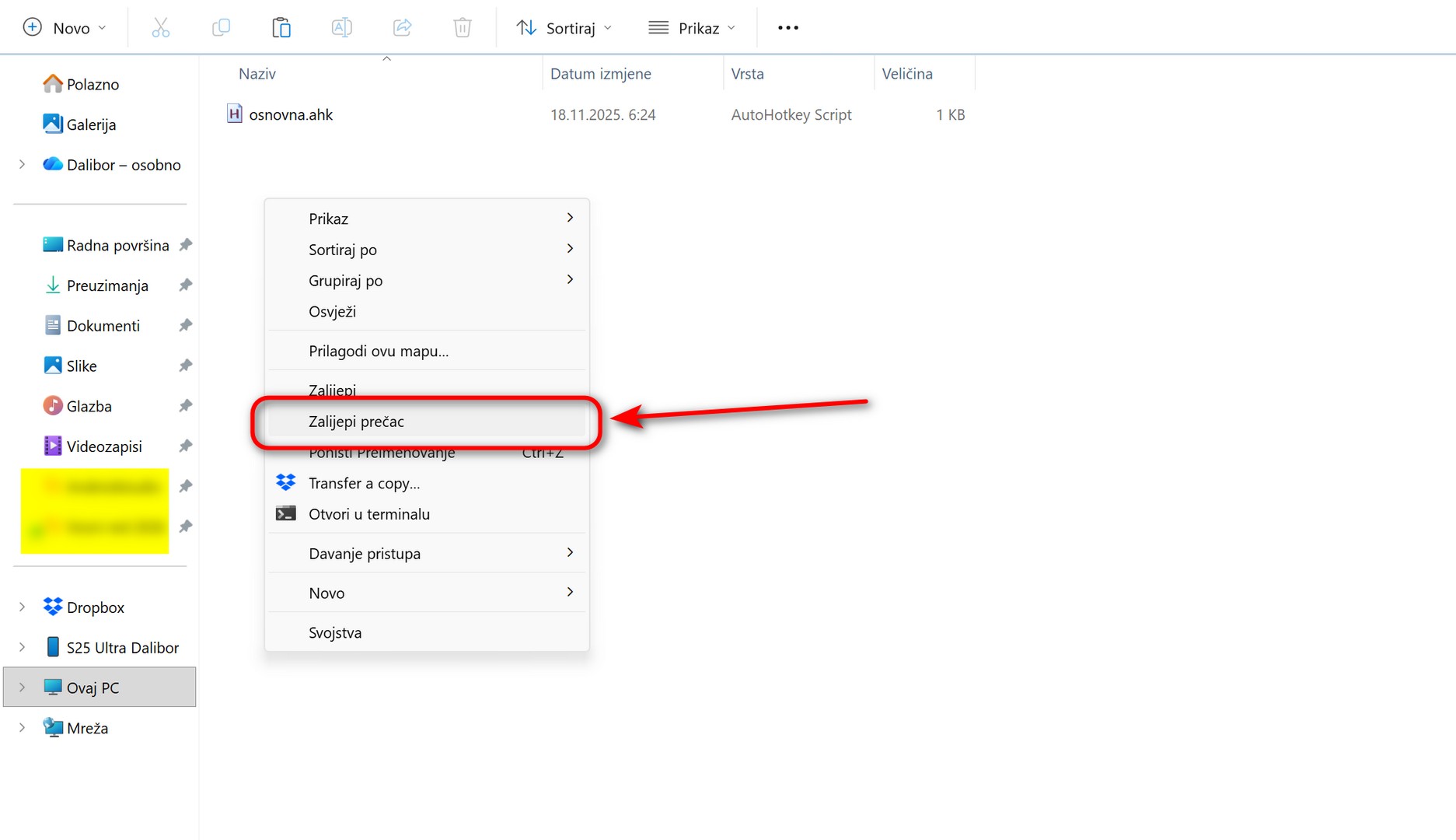
Open it Startup folder, right-click on an empty area and select Paste shortcut (Paste shortcut).
Method 2: Classic shortcut creation
-
Right click on the desired file and select Create shortcut.
-
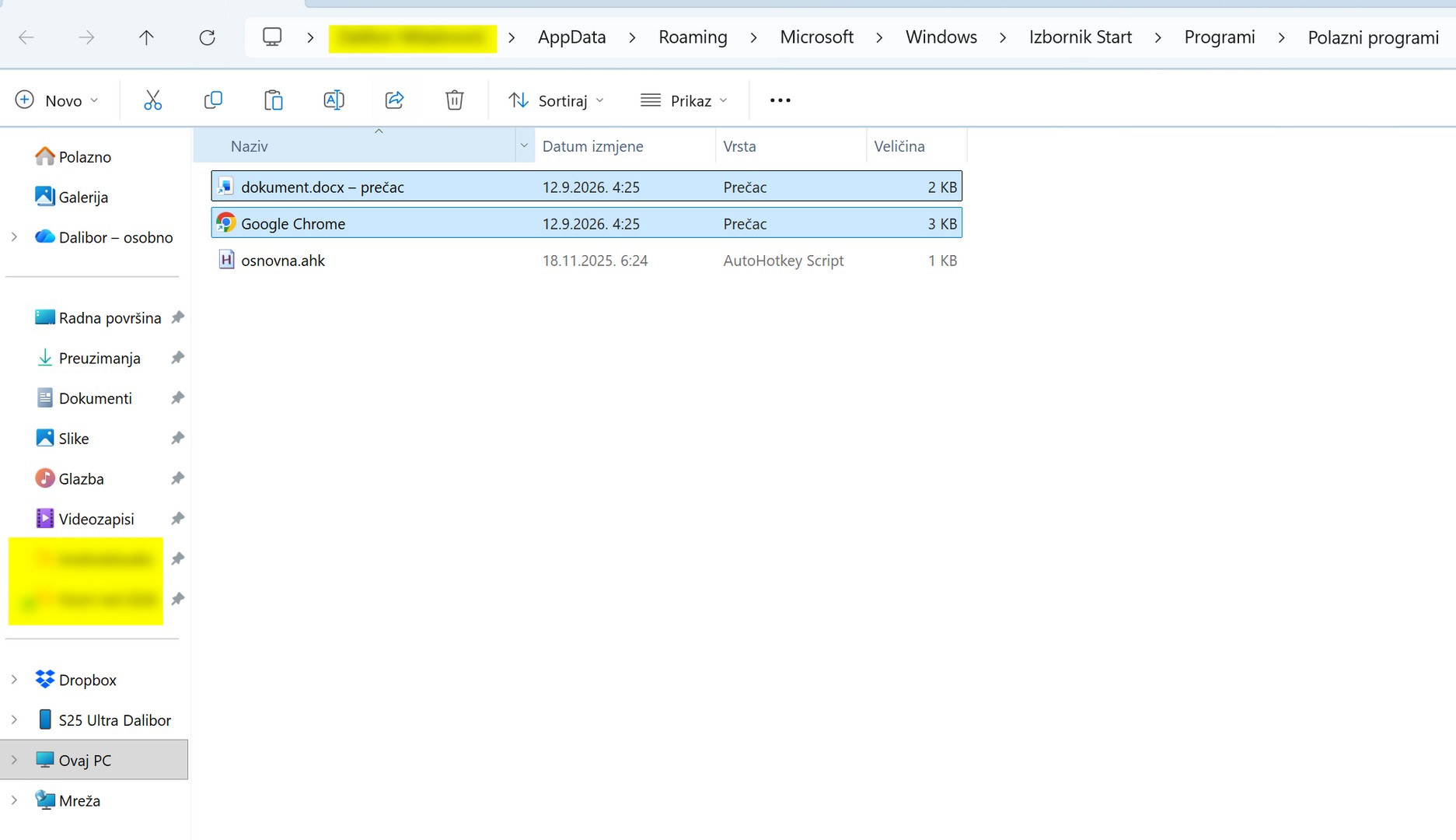
Windows will create a shortcut next to the original (an icon with a small arrow in the lower left corner).
-
Simply drag that newly created shortcut to the Startup folder.
Done. The next time you turn on your computer, that program or document will open by itself.
Note: Do not overdo it!
While automation is a great thing, The startup folder is not a dump. If you insert heavy programs into it (like Photoshop, various launcher for games or heavy databases), you will drastically slow down Windows boot. Your computer will 'choke' for the first few minutes after turning it on.
Use this folder only for small, essential tools and scripts that you really need the second you sit down at your computer (eg AutoHotkey scripts, reminders, lightweight background tools).