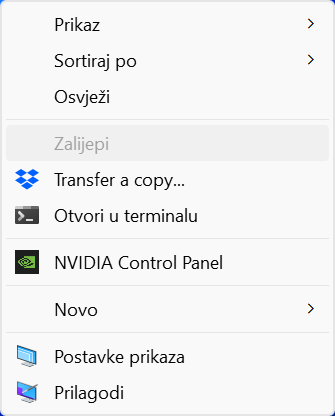
How to permanently restore the old 'right click' menu in Windows 11

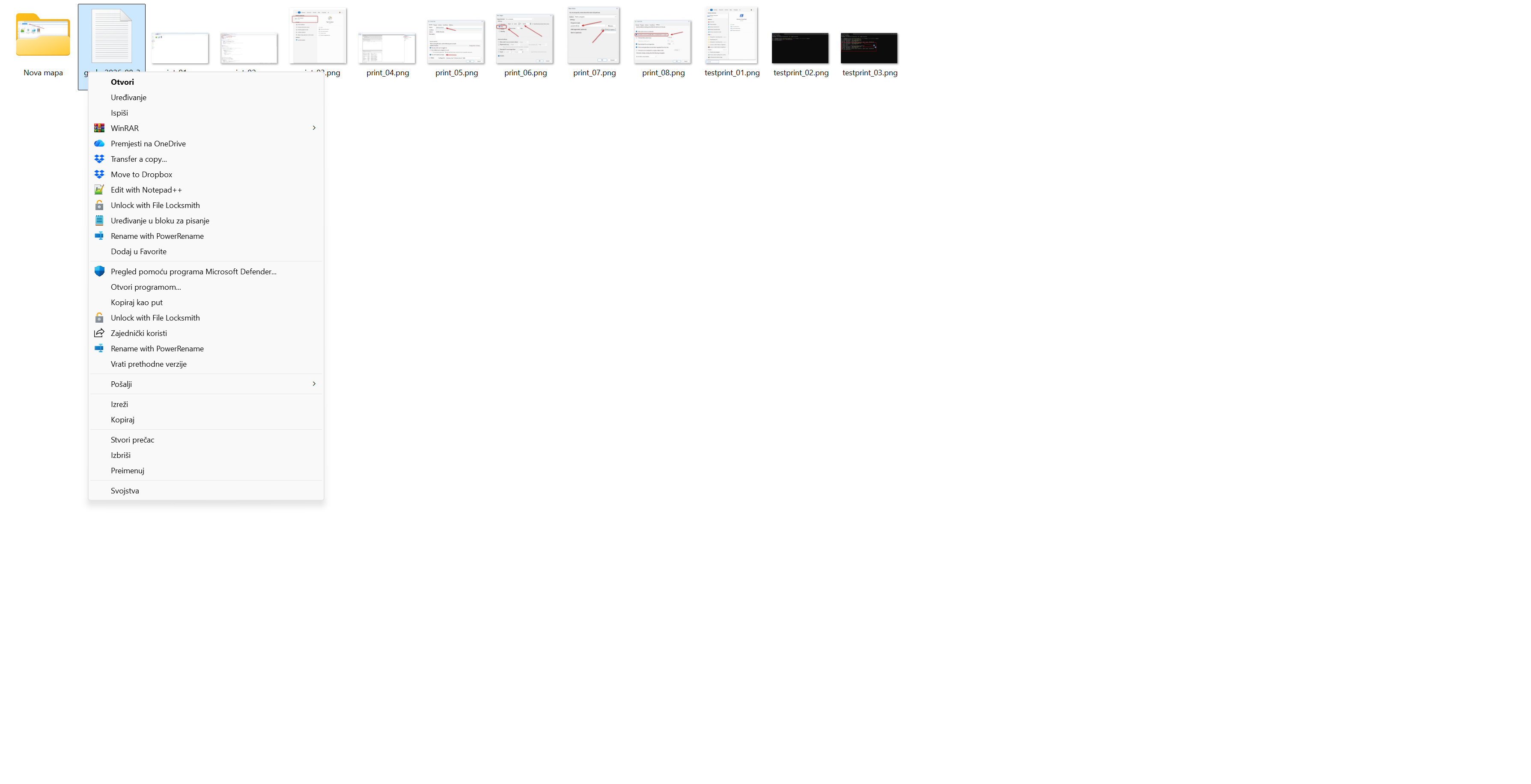
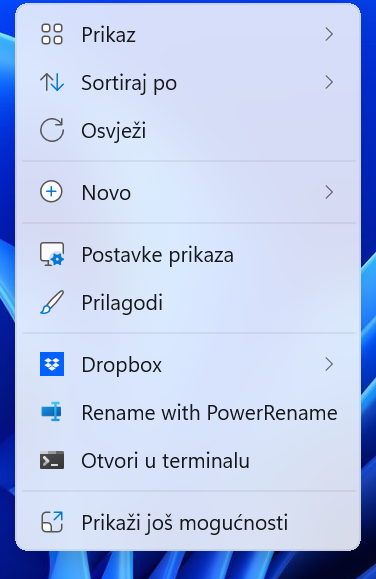
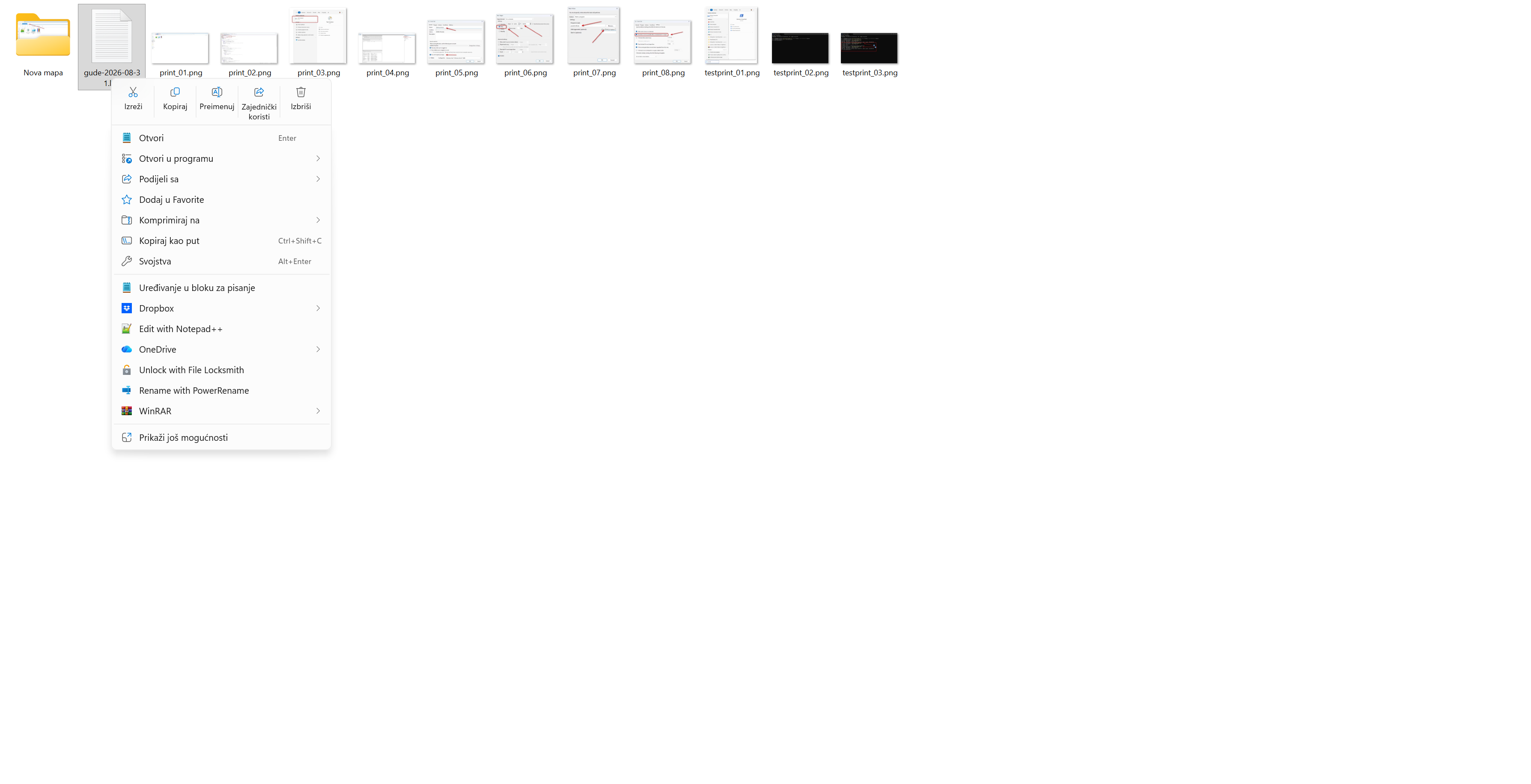
When Microsoft introduced Windows 11, one of the biggest changes was the new, streamlined right-click menu. Although visually it looks cleaner, many options that we have been used to for years have been removed from it (such as unpacking archives, code editing or antivirus options).

Instead, for almost every useful action you now have to click on Show more options (Show more options) at the very bottom.

This one additional and completely unnecessary click drives many users crazy because it drastically slows down their daily work. Fortunately, there is a very simple way to permanently restore that classic, large menu from Windows 10 with one short command, without installing any additional programs.

How to restore the classic menu in 2 quick steps

We'll do it all with a single line of code in a built-in Windows tool that will modify the Registry and immediately refresh the view.

Step 1: Open Command Prompt

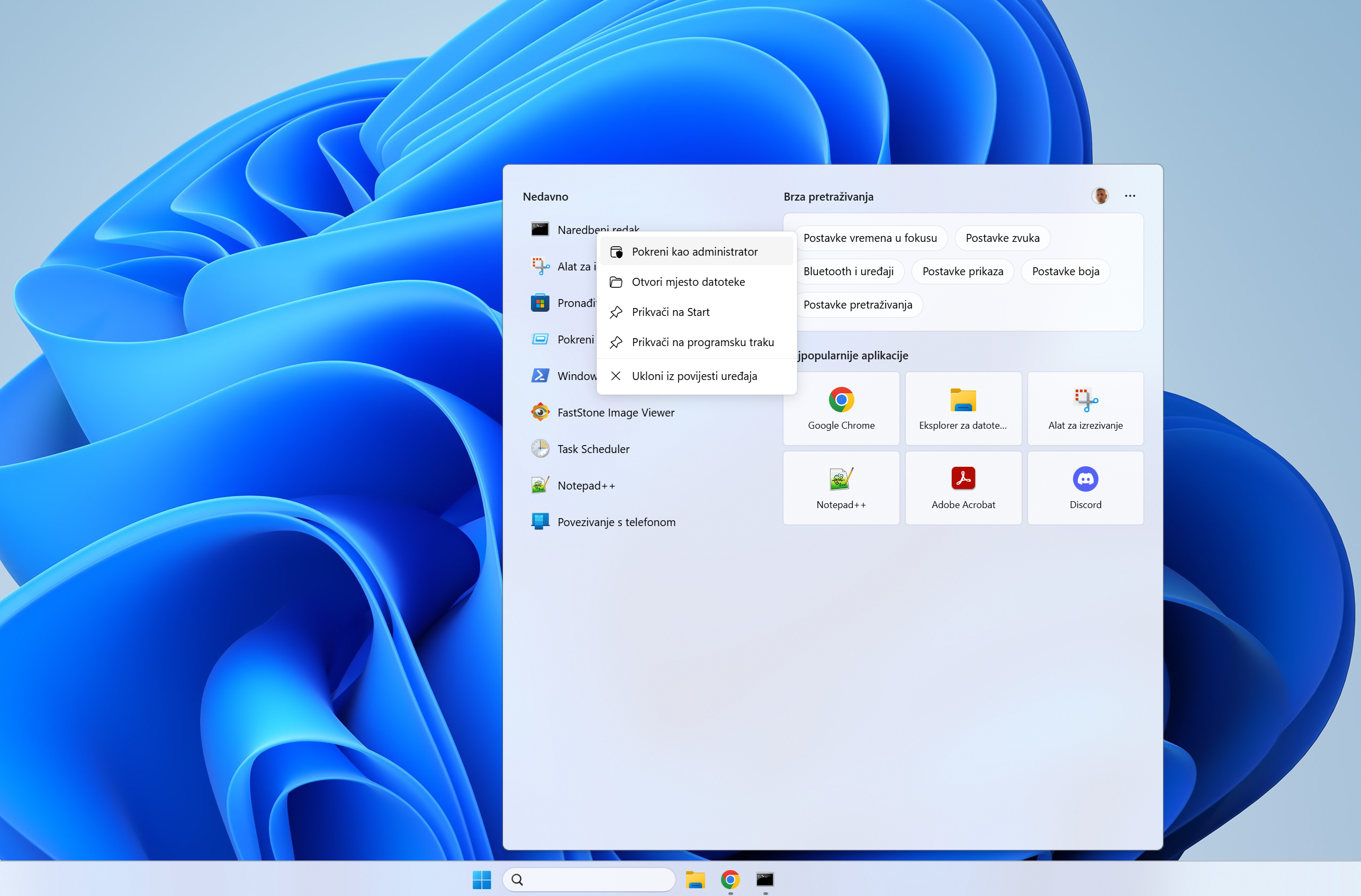
  1. Click on the Start menu (or press the Windows key on your keyboard).

  2. Enter cmd.

  3. It will appear in the results Command Prompt (Command line). Click on it to open it.

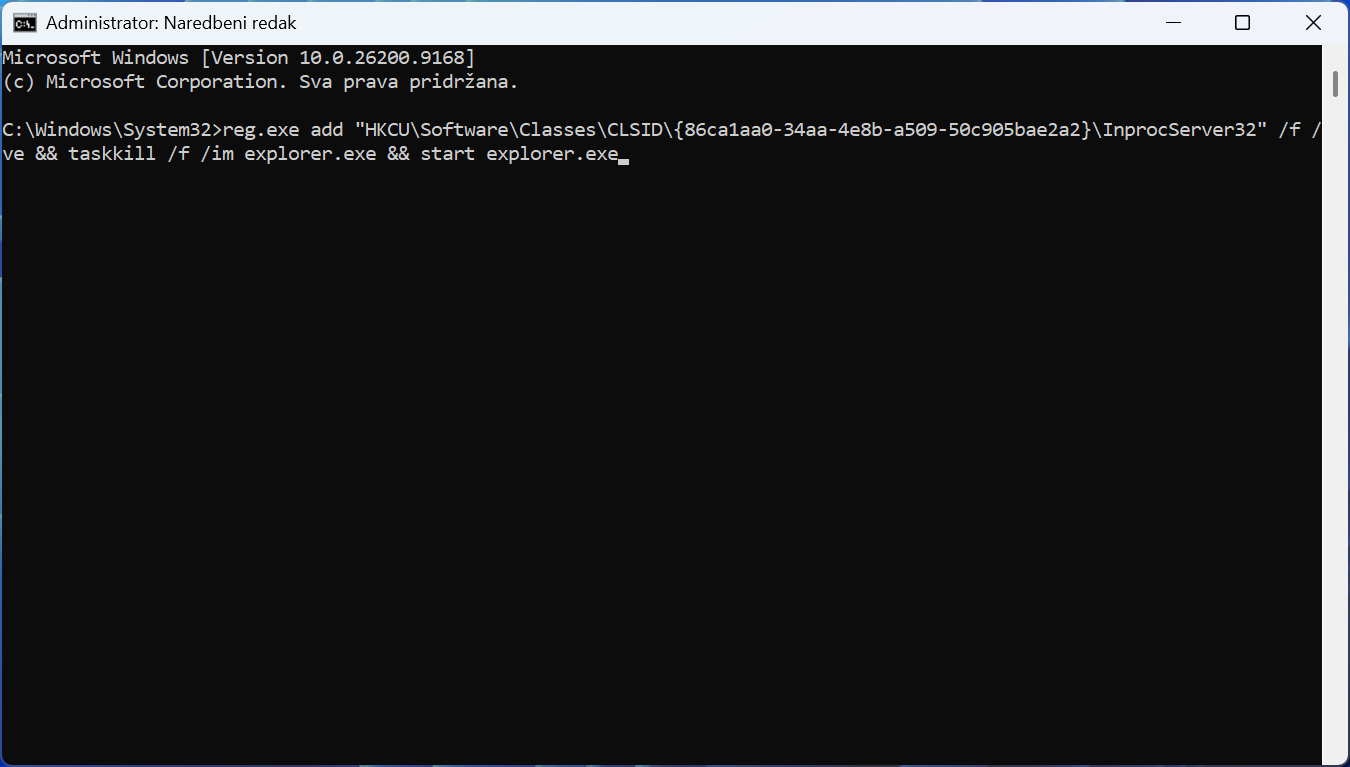
Step 2: Enter the command to restore the menu When the black window opens, highlight, copy and paste the following command. To paste in the Command Prompt, it is usually enough to just press the right mouse button inside the window.

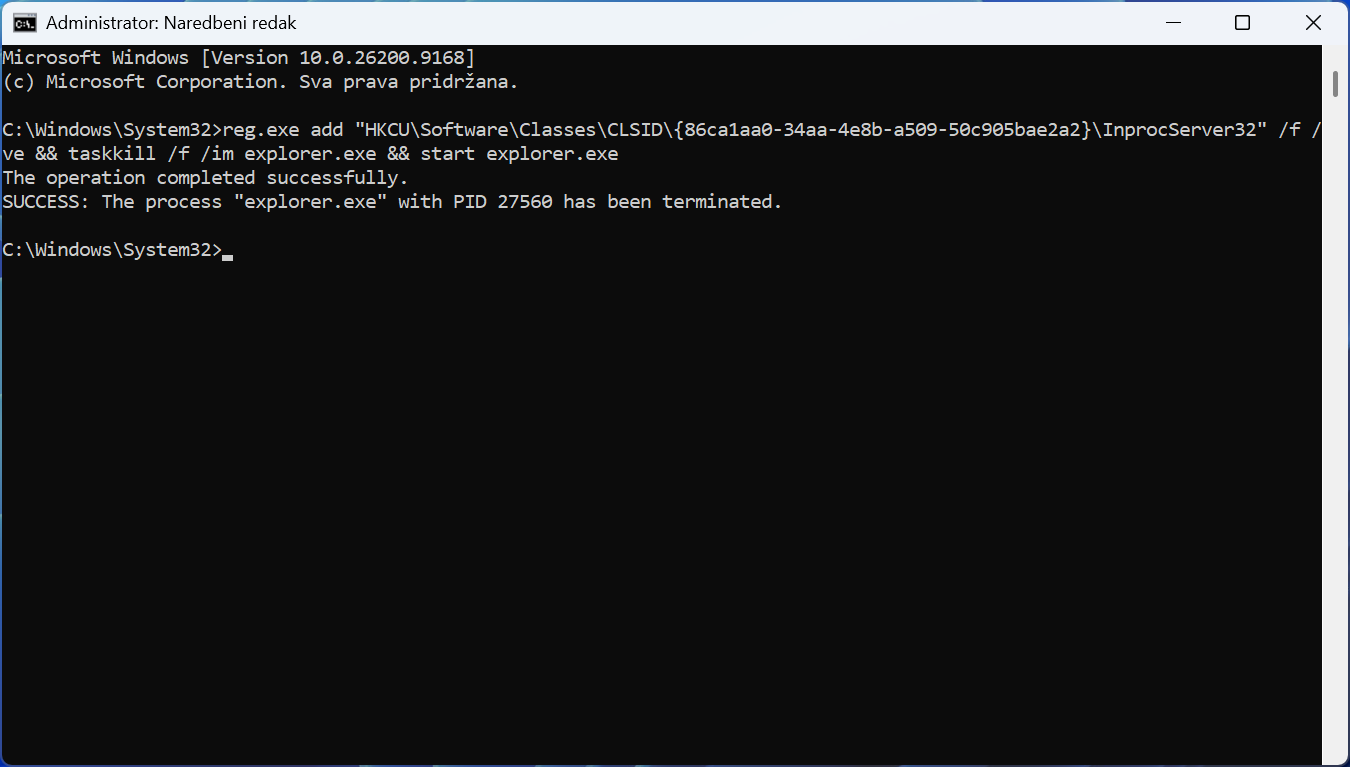
reg.exe add 'HKCU\Software\Classes\CLSID\{86ca1aa0-34aa-4e8b-a509-50c905bae2a2}\InprocServer32' /f /ve && taskkill /f /im explorer.exe && start explorer.exe

After pasting the code, press Enter on the keyboard.

Note: Your screen will flicker for a second, and the taskbar will briefly disappear and then return. Don't panic, this is completely normal – the command is designed to automatically restart Windows Explorer so that the change is immediately visible.

Done! Right-click on any file on your desktop and you'll be greeted with the good old quick menu with all your options.
Undo the change (Return to the new Windows 11 menu)

If for some reason you need that new, shortened menu again, it's just as easy to undo the change.

Open again Command Prompt, paste this command to delete the key and press Enter:

reg.exe delete 'HKCU\Software\Classes\CLSID\{86ca1aa0-34aa-4e8b-a509-50c905bae2a2}' /f && taskkill /f /im explorer.exe && start explorer.exe


Why does this work?

The first command simply creates a specific key in the Registry that signals Windows 11 to ignore the new menu design and force load the old one instead. InprocServer32 module.

The change is completely safe for the operating system, and saves hundreds of unnecessary clicks in the long run.

Ask a question on the forum

Share the article